App tour
The app is organized in main pages, each with its subpages. The sidebar is on the left; at the bottom, a status bar shows the daemon, proxy, DNS and HTTPS at a glance (each part leads to its settings).
Opening
On launch, a small window draws the LocDev mark and the boot trace: daemon → proxy → DNS → HTTPS. Each node lights up with the real state read from the daemon (green when all is well, amber when it works with caveats, such as HTTPS not trusted yet, red when it failed). When the interface has its data, the mark's satellite "leaves its orbit" and the main window takes over. The splash never holds the launch for more than 8 seconds, and follows the theme and the animation preference.
Navigation
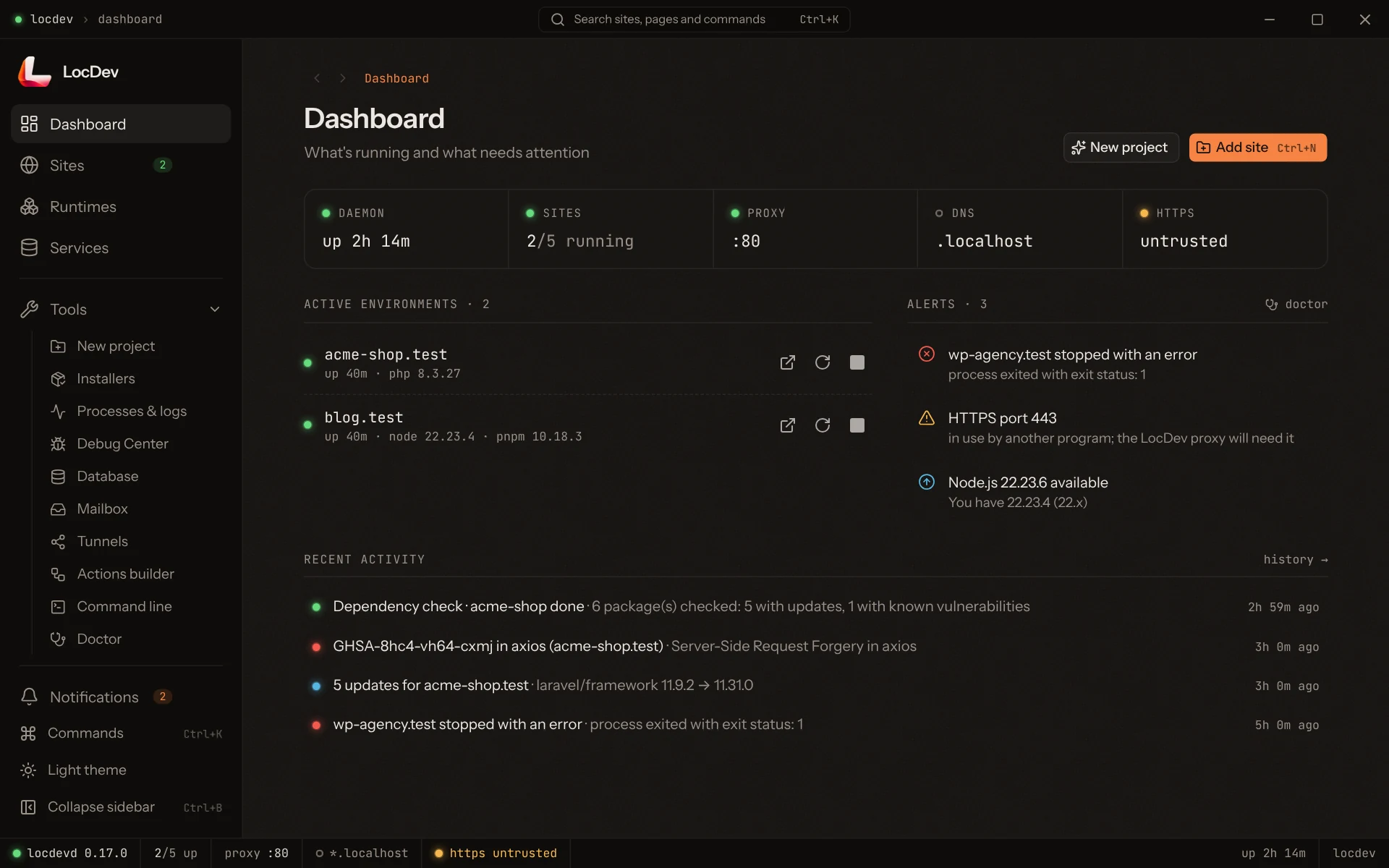
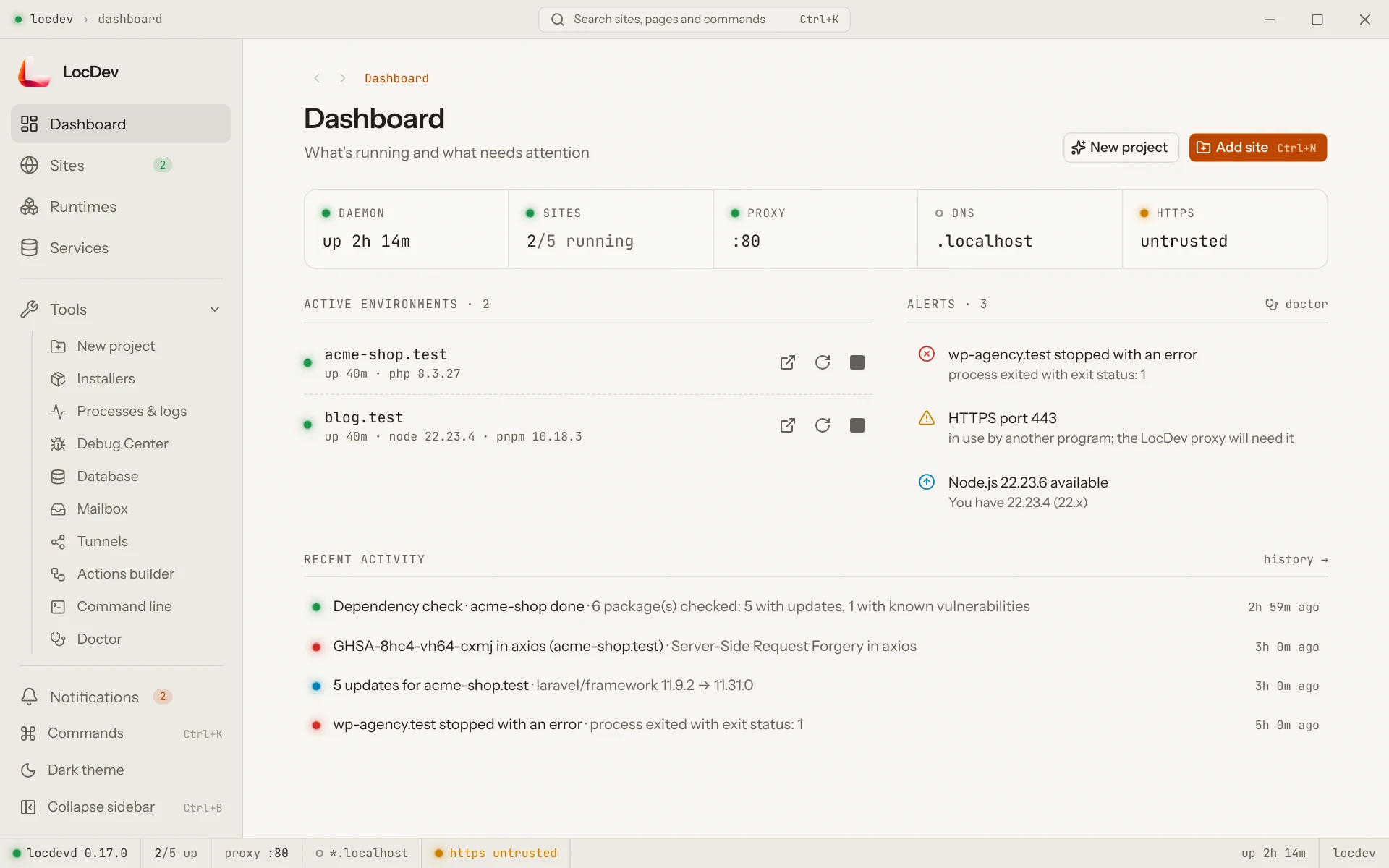
The sidebar has two modes, expanded (icons and names) and collapsed (icons only, with tooltips). Switch with Ctrl B or the button at its bottom; the choice is kept. In narrow windows it's always collapsed. The ↑ ↓ arrows move through the items.
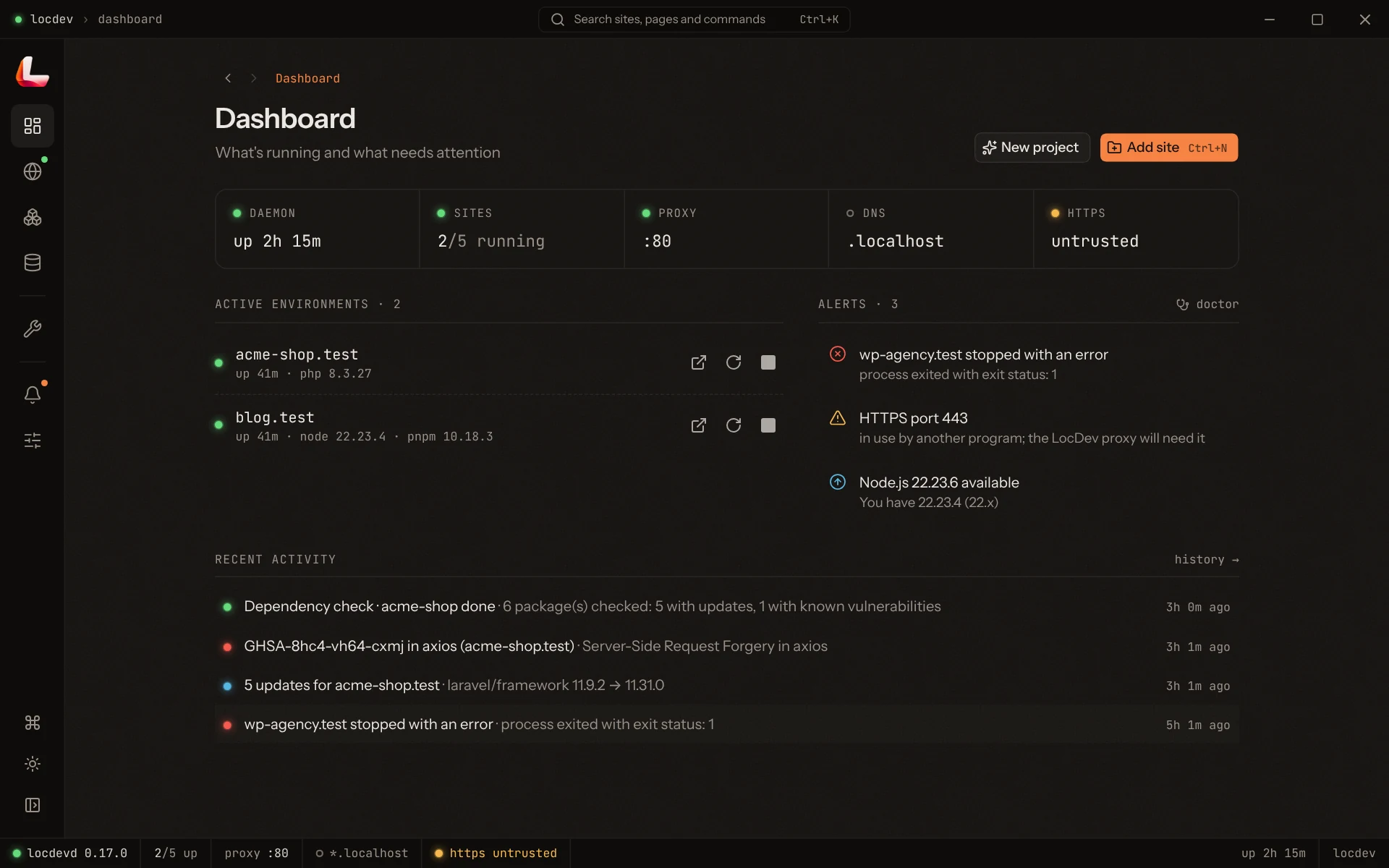
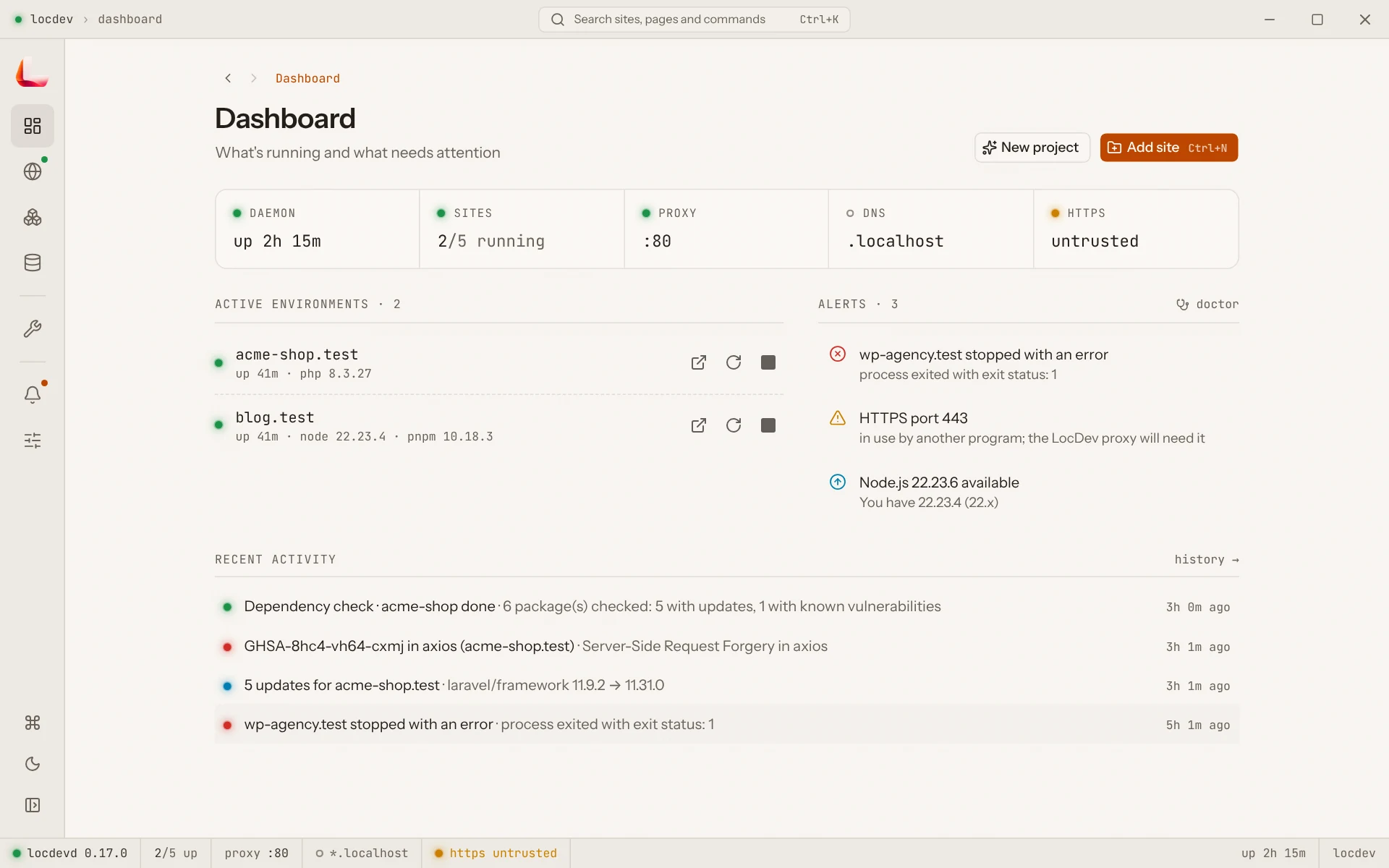
Only Tools has a submenu in the sidebar. Other subpages live inside their page: tabs in Runtimes and in each site, side navigation in Settings. Every page shows its path (breadcrumbs) and back/forward buttons (Alt ← / Alt →, or the mouse side buttons).
| Page | What it has |
|---|---|
| Dashboard | Environment state, active environments, alerts (failed sites, Doctor, runtimes) and recent activity |
| Sites | The site list and each site's detail: Overview, Server, Dependencies, Environment, Config, Email Studio, Deploy, Git, GitHub (with a GitHub remote) and Settings |
| Runtimes | Overview (what each site uses and why), Node.js, PHP and package managers |
| Services | Installs and instances of databases and caches (Services) |
| Tools | New project and Installers, Processes & logs, Database, Mailbox, Actions builder, Command line, Doctor |
| Notifications | Pending, history and preferences (details) |
| Settings | Overview, Daemon, Proxy, DNS, Parked folders, HTTPS, Automations, Frameworks, Environment, Security, Integrations, Updates, Appearance, Shortcuts and About |
Title bar
The top bar is the app's own, not the system's: on the left, an LED with the daemon's state and where you are (locdev › sites · shop); in the middle, the search, which opens the command palette; on the right, minimize, maximize and close. Drag the bar to move the window and double-click it to maximize. Closing only hides the app in the tray, as before. On macOS the system's own buttons stay, over the bar.
Sites
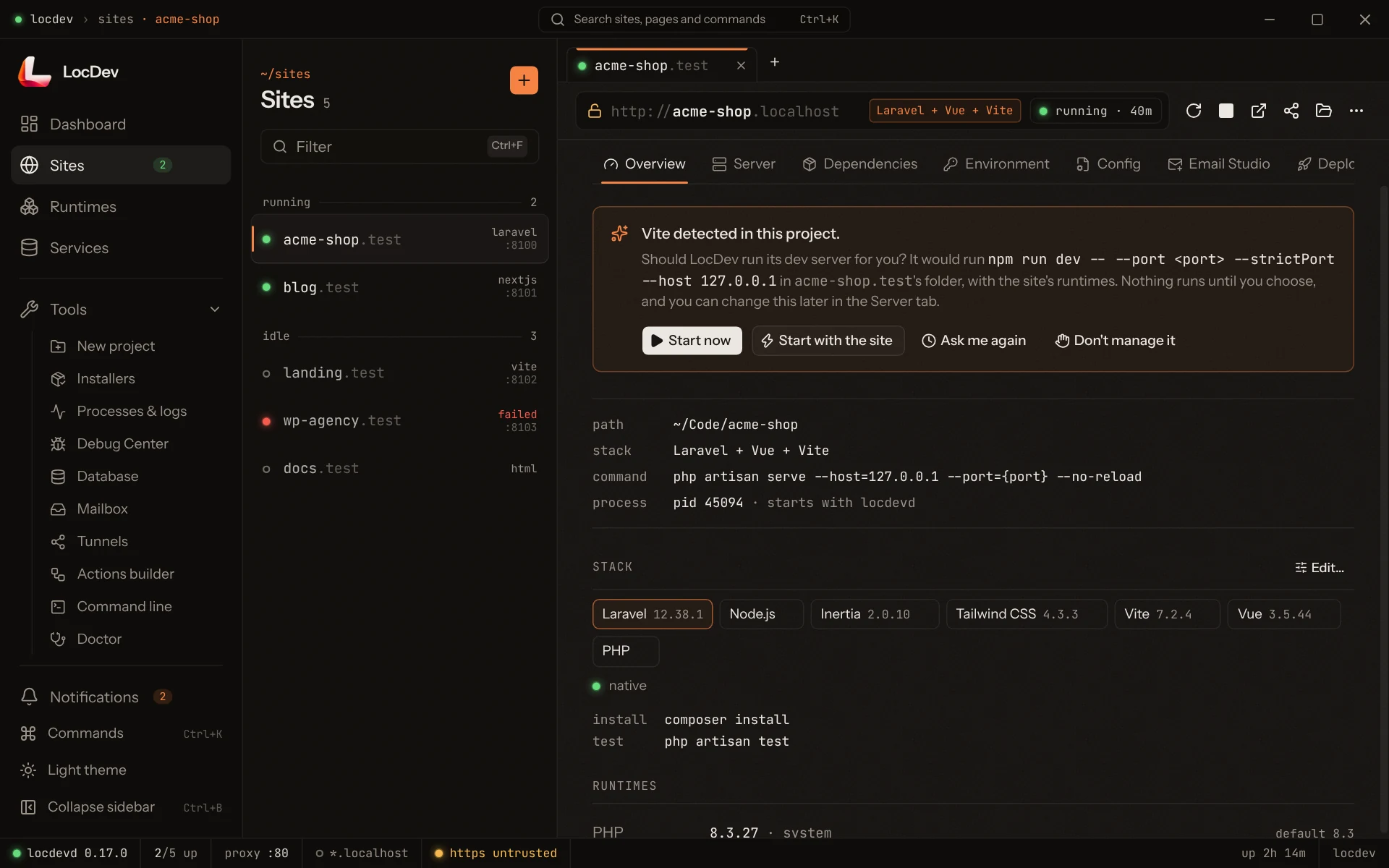
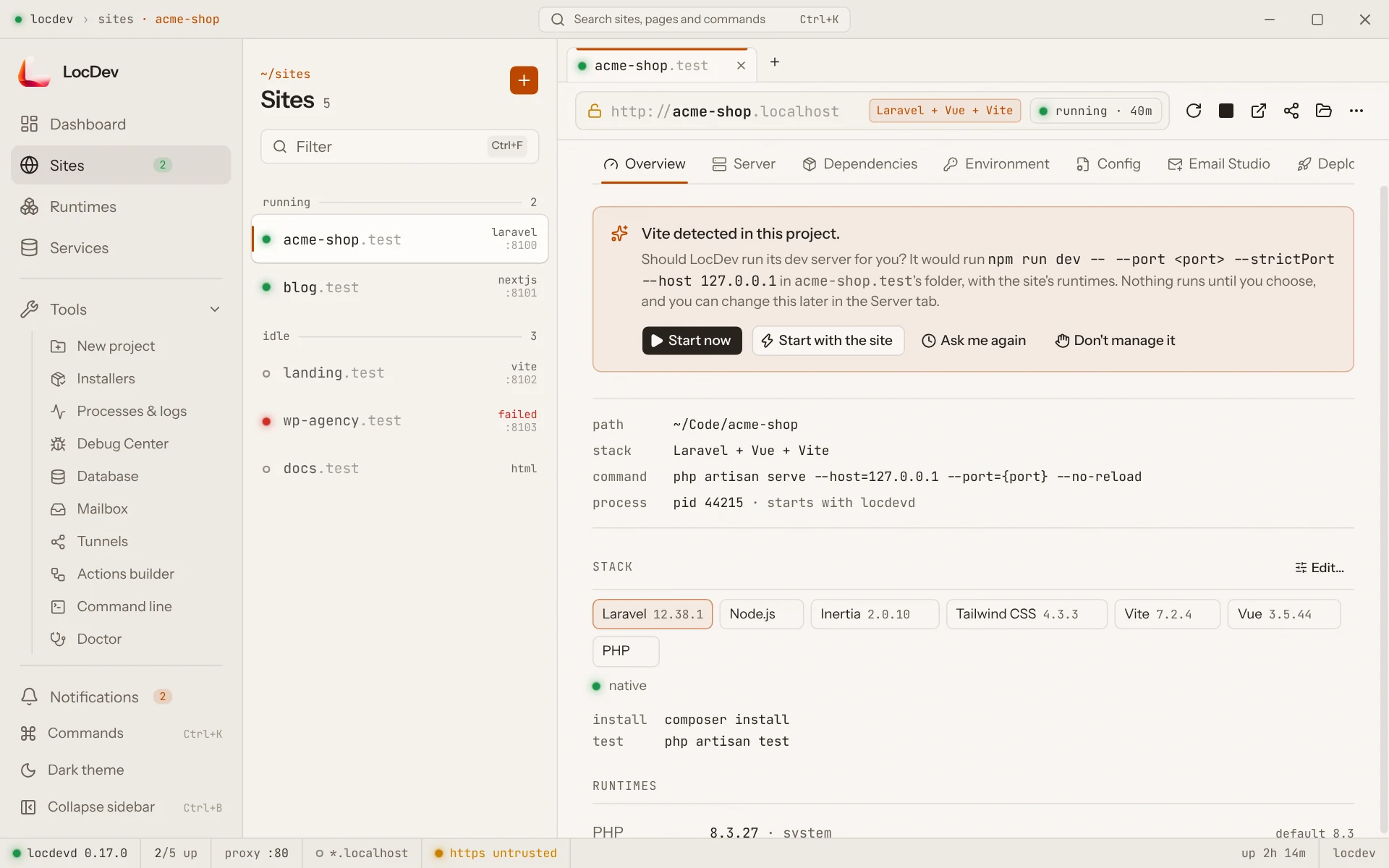
- List on the left: sites are grouped in running and idle, with a status LED, the project type and the port. Filter with
CtrlF. - Tabs: each site opens in a tab, as in a browser. Clicking a site in the list shows it in the front tab (or switches to the tab that has it);
Ctrl+click or a middle click opens it in a new tab, and + opens an empty tab listing every site. Drag tabs to reorder them; a middle click closes one. Each tab remembers its subpage (Overview, Server, Git…), and the tabs come back when the app reopens. - Address bar: the site's address with a lock (green when HTTPS is trusted; amber leads to trusting the CA), the framework, the state and the controls (start, stop, restart, open in the browser, reveal the folder and the ⋯ menu). Click the address and type part of a site's name to go to it:
Enteropens it in this tab,CtrlEnterin a new one. A subdomain (api.shop.test) leads to its site. - Overview: path, command, process and the runtimes the site uses, with where each version came from (pin,
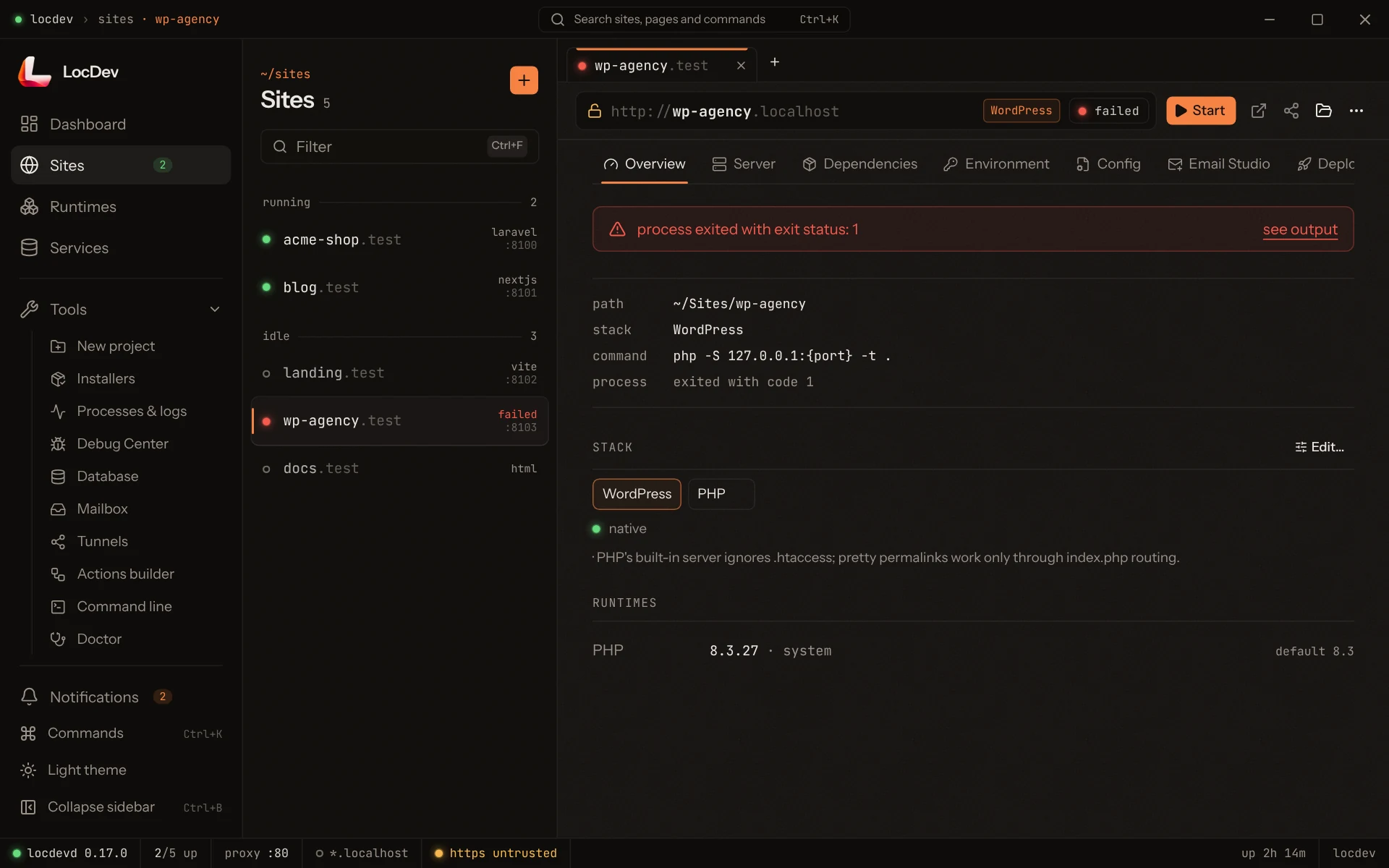
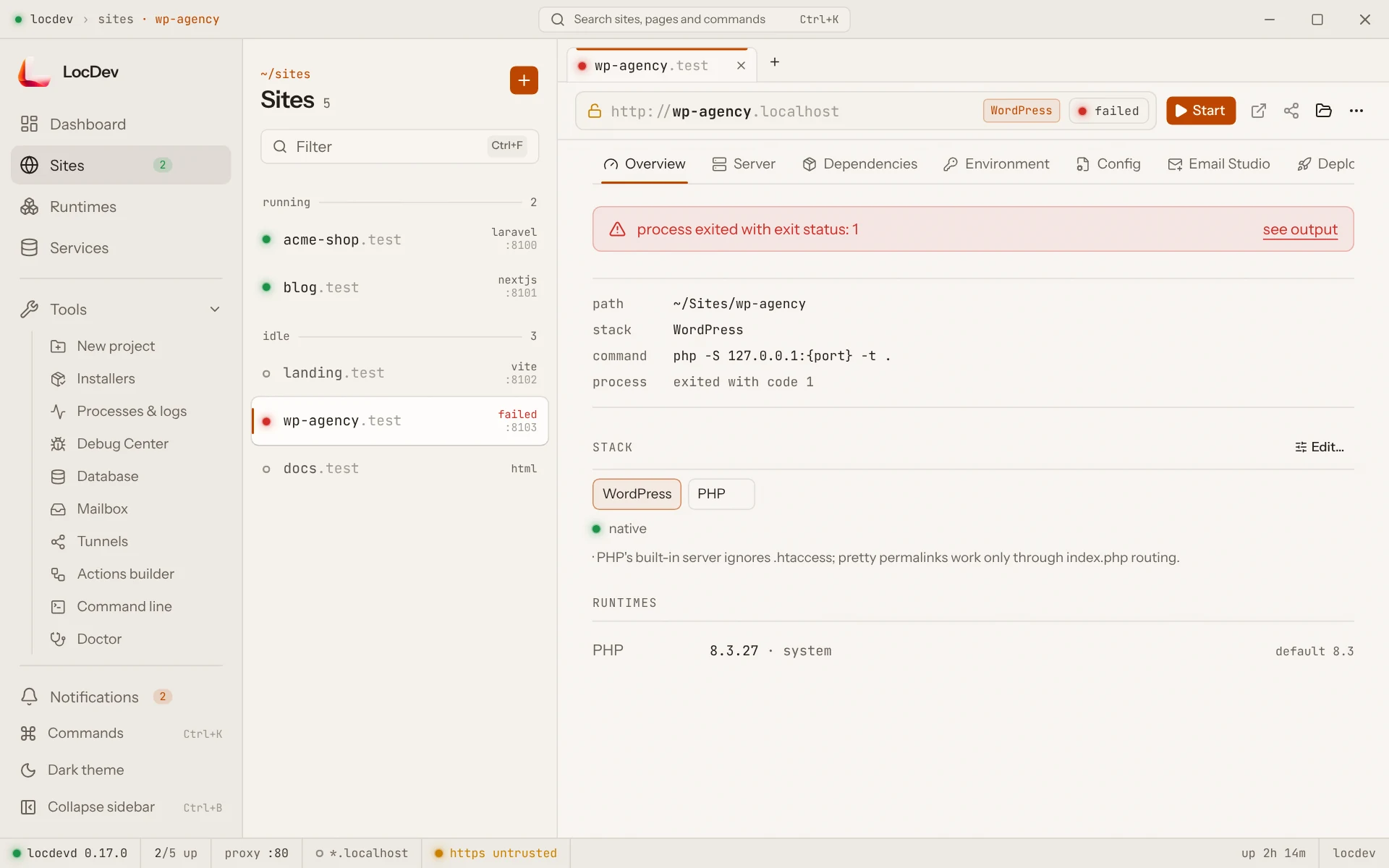
.nvmrc,engines, default) and warnings for an unmet range or an unsupported version. - Server: the live process output, stderr in amber and LocDev's own notes in italics. You can clear the view, copy the output and pause auto-scroll.
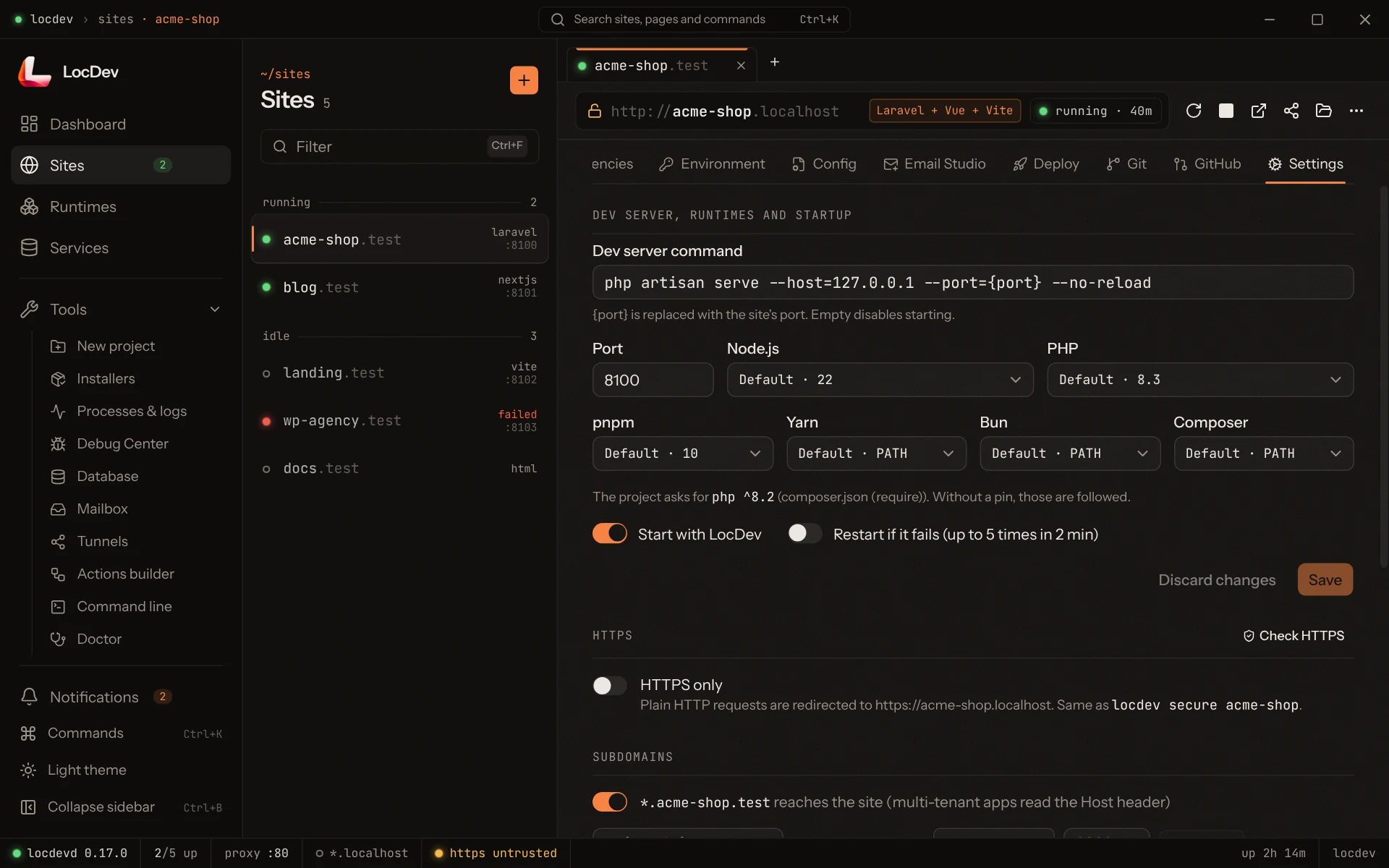
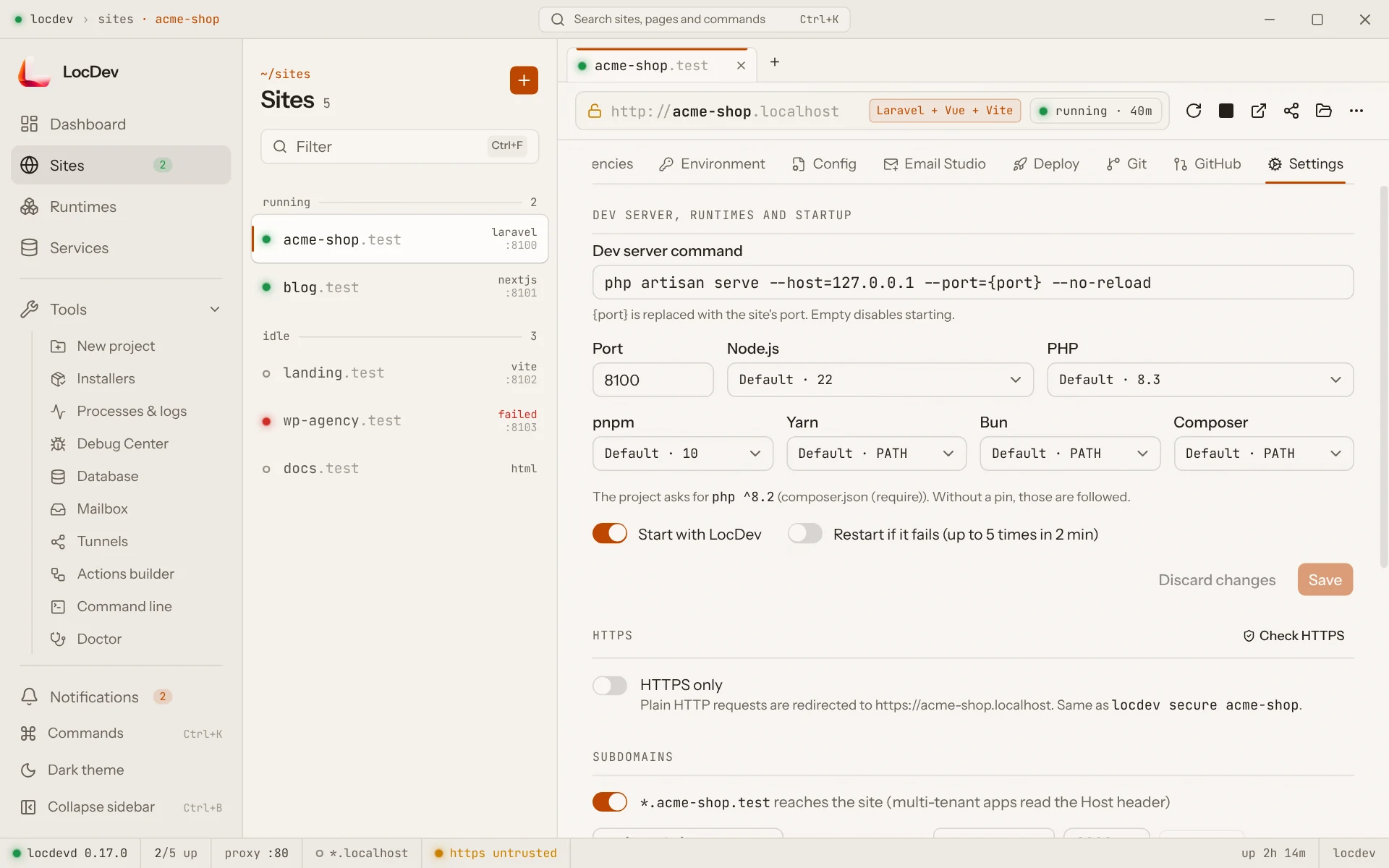
- Settings: command, port, runtime and package manager versions, starting with LocDev, and the site's domains with their HTTPS state.
When a process fails, the reason is highlighted and leads to the output:
Right-click a site in the list, or use the ⋯ menu, for the same actions: open in the browser, start/stop, restart, open in a new tab, edit, reveal the folder, copy the URL or path, and remove. Removing asks first and never deletes files.
Tray
While the app is open, LocDev sits in the system tray. On Linux and Windows the icon is ember with the daemon running and gray with it stopped; on macOS it's monochrome like other menu bar icons, and the state shows in the menu. The menu shows how many sites are up and, for each site, Open in browser, Start/Stop and Restart, plus opening the app and starting, stopping or restarting the daemon.
The colored dot
When there's something to read, a dot shows in the corner of the tray icon. Its color says what:
| Color | Means |
|---|---|
| Blue | Unread notifications (updates, failures, job results…) |
| Green | Emails captured by the Mailbox you haven't opened yet |
| Violet | Both |
The icon's tooltip and the menu say how many (for example 3 unread notifications, 1 unread email (violet dot)), and the menu items open Notifications or the Mailbox. The dot goes away once everything is read. On macOS, while the dot is lit, the icon stops being monochrome so the color shows.
Closing the window only hides the app: it stays in the tray. To exit, use Quit LocDev in the menu. Quitting closes only the app; the daemon keeps serving the sites, as with the CLI (locdev stop stops the daemon). Opening LocDev again brings back the window that was already open, which is also the way back on desktops without a tray.
On GNOME, tray icons depend on the AppIndicator extension, which Ubuntu enables by default. On other distributions, install the AppIndicator and KStatusNotifierItem Support extension.
Command palette
Ctrl K (or ⌘ K on macOS) opens the palette: start, stop and open sites, control the daemon and go to any page or subpage.
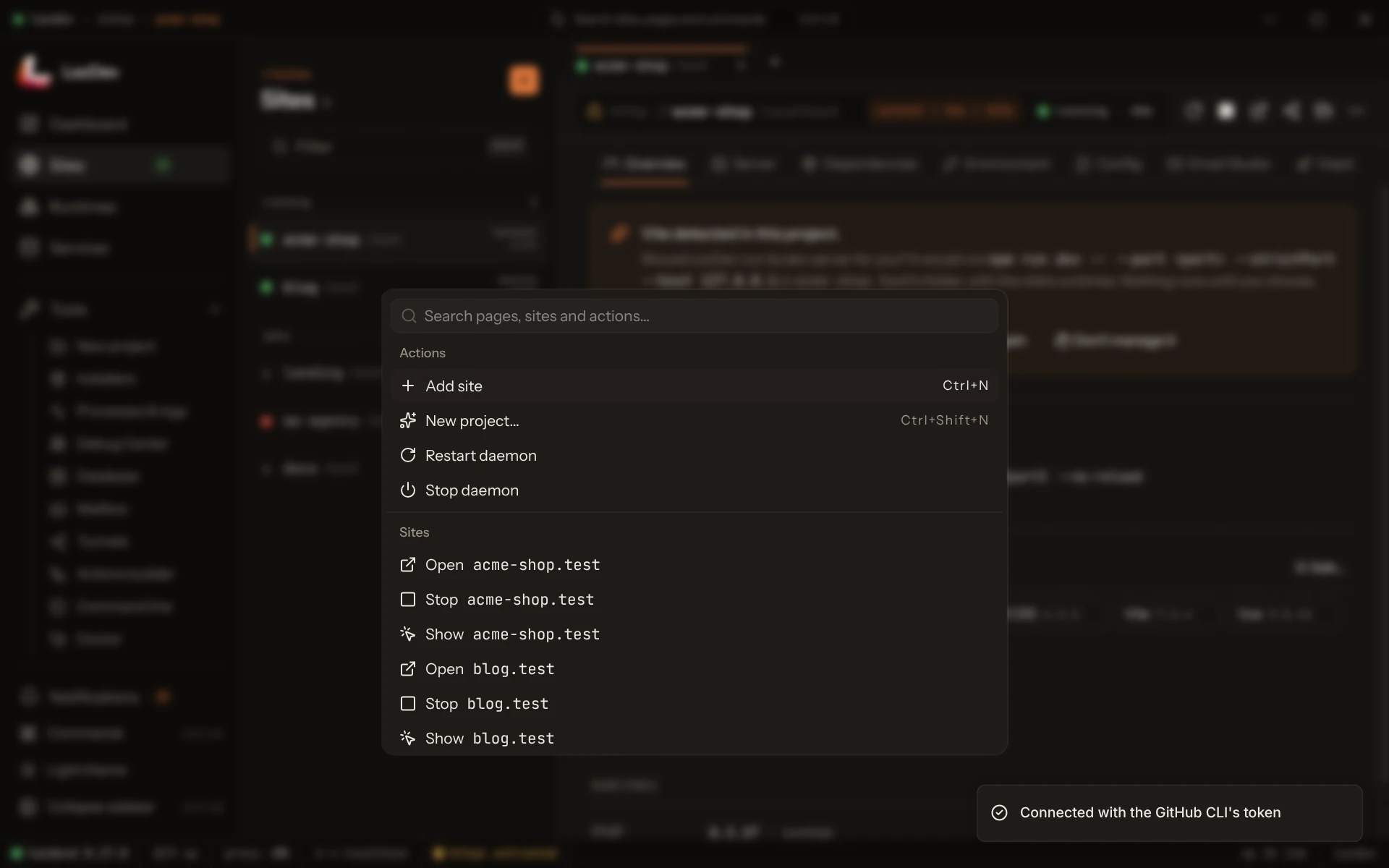
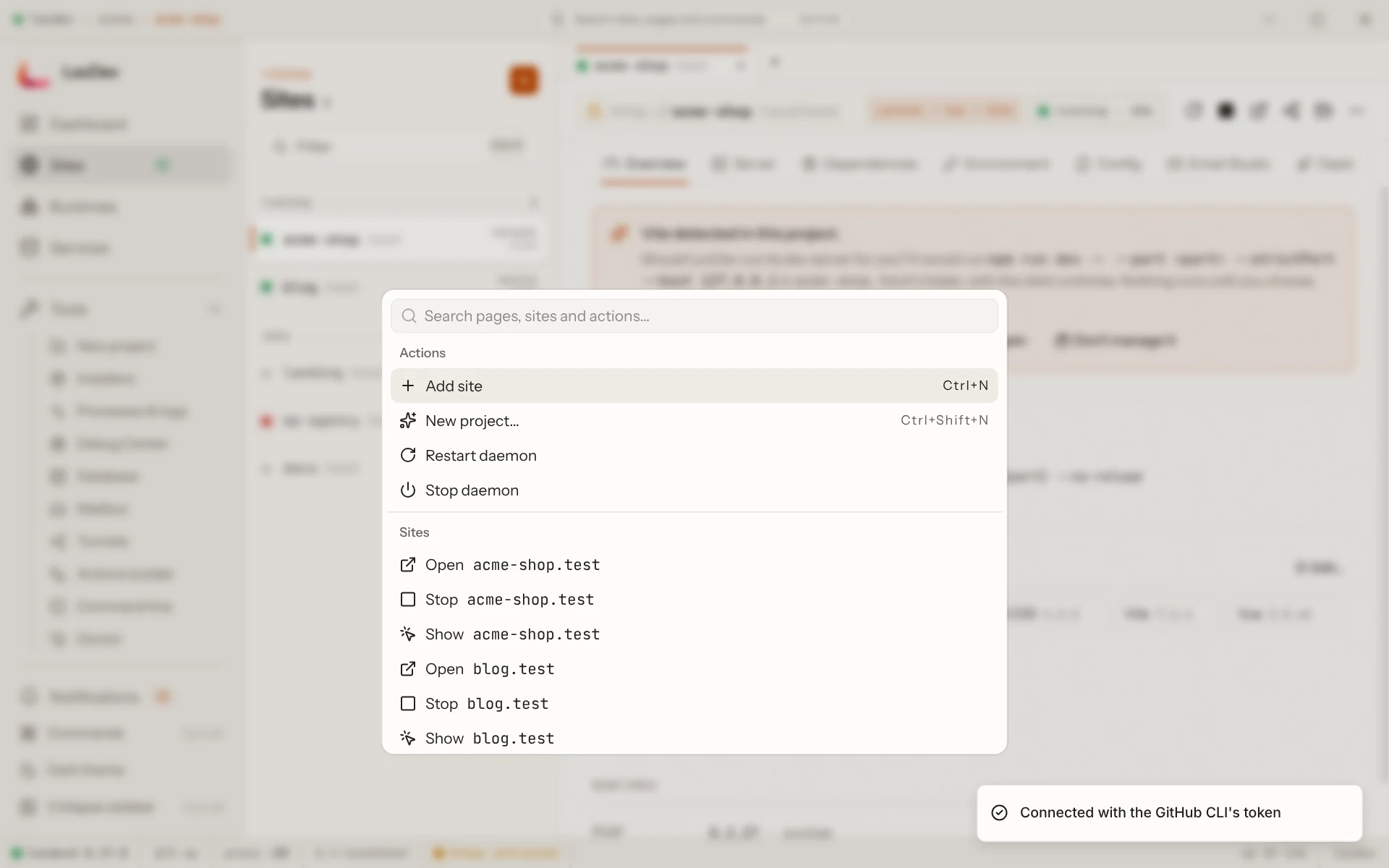
The main shortcuts: Ctrl K (palette), Ctrl N (add a site), Ctrl 1 … 7 (pages), Ctrl , (settings), Ctrl T/Ctrl W/Ctrl Tab (site tabs) and Alt ←/→ (back/forward). All of them can be changed in Settings → Shortcuts; the full list is in Keyboard shortcuts.
Doctor
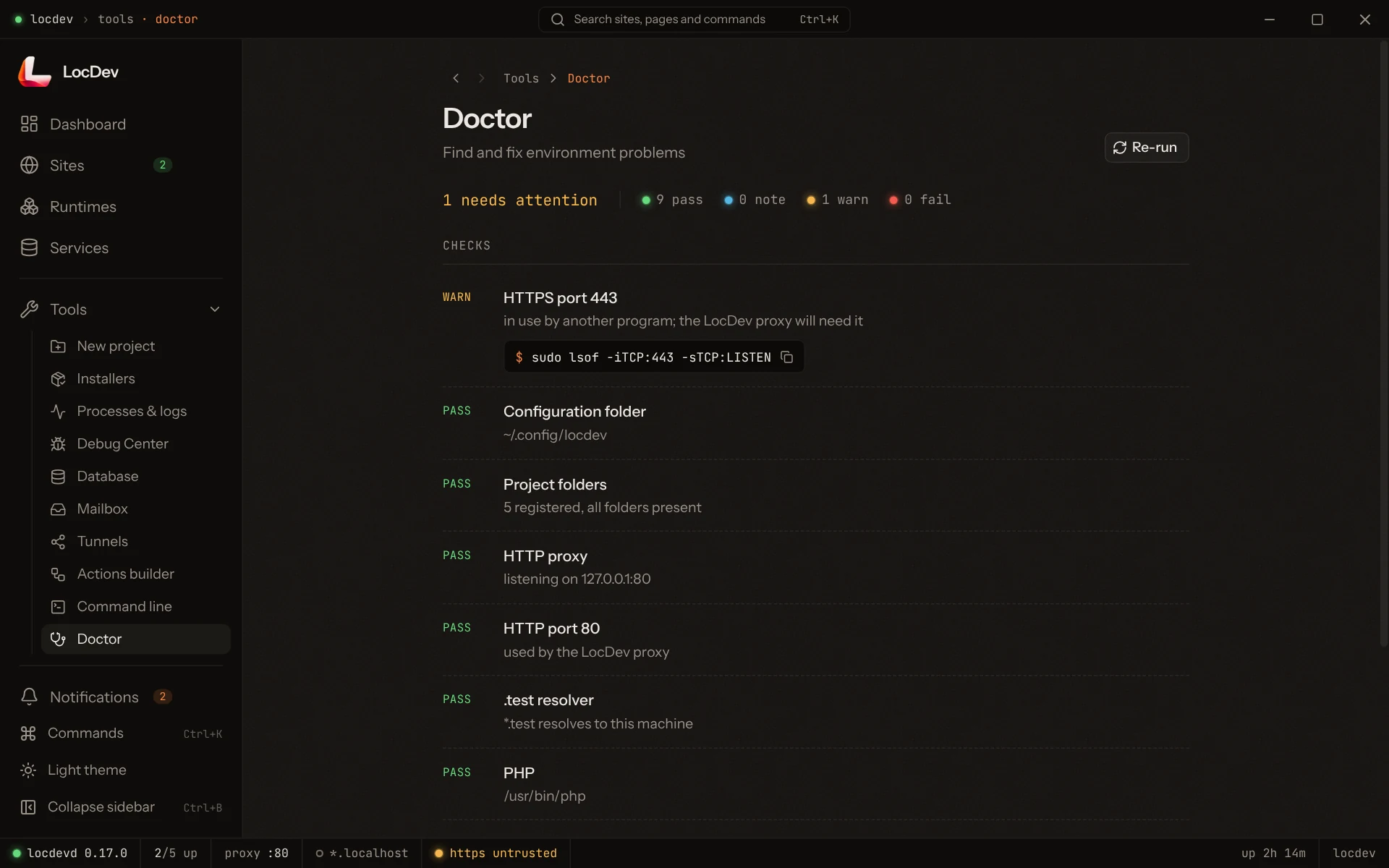
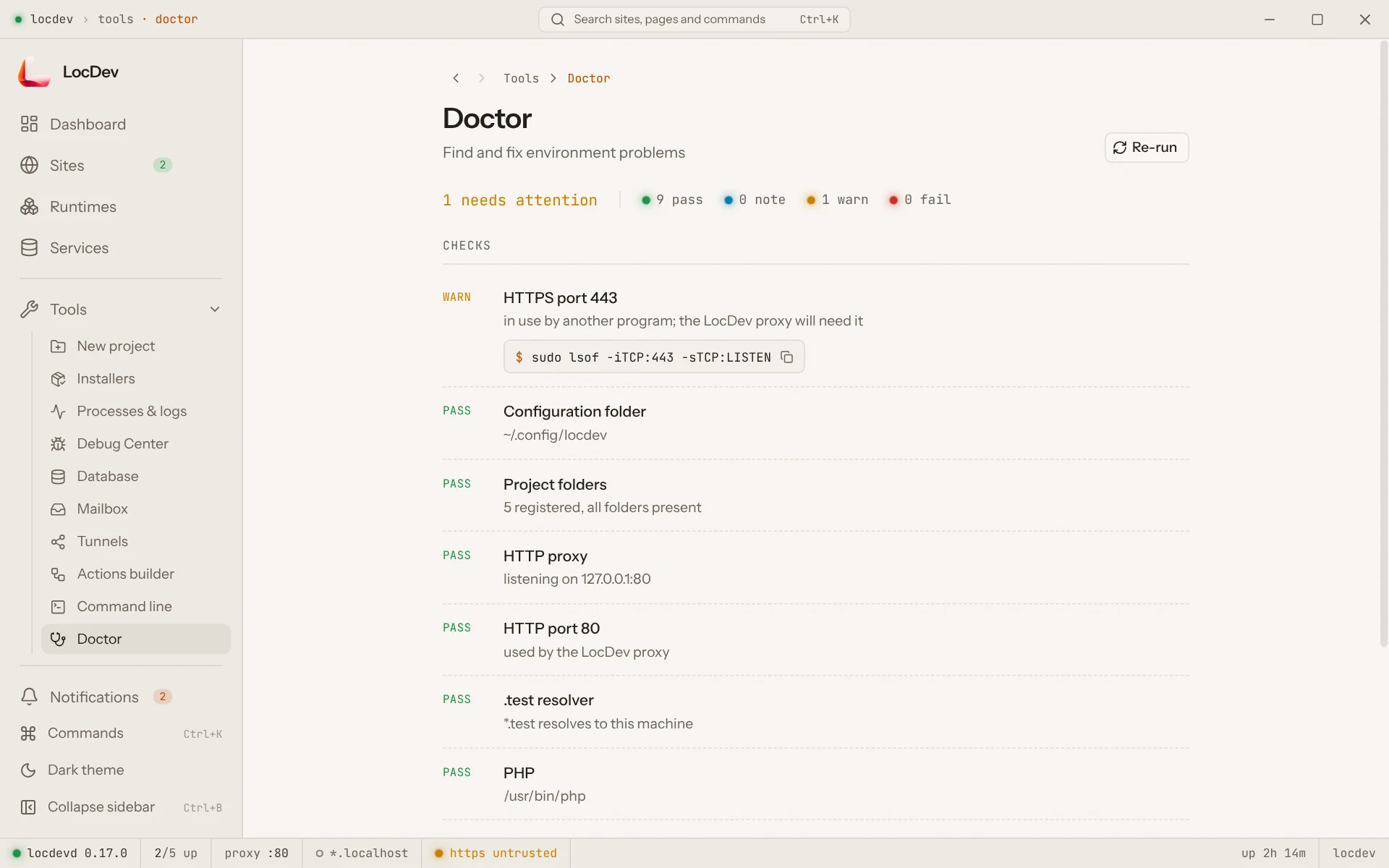
In Tools → Doctor.
Settings
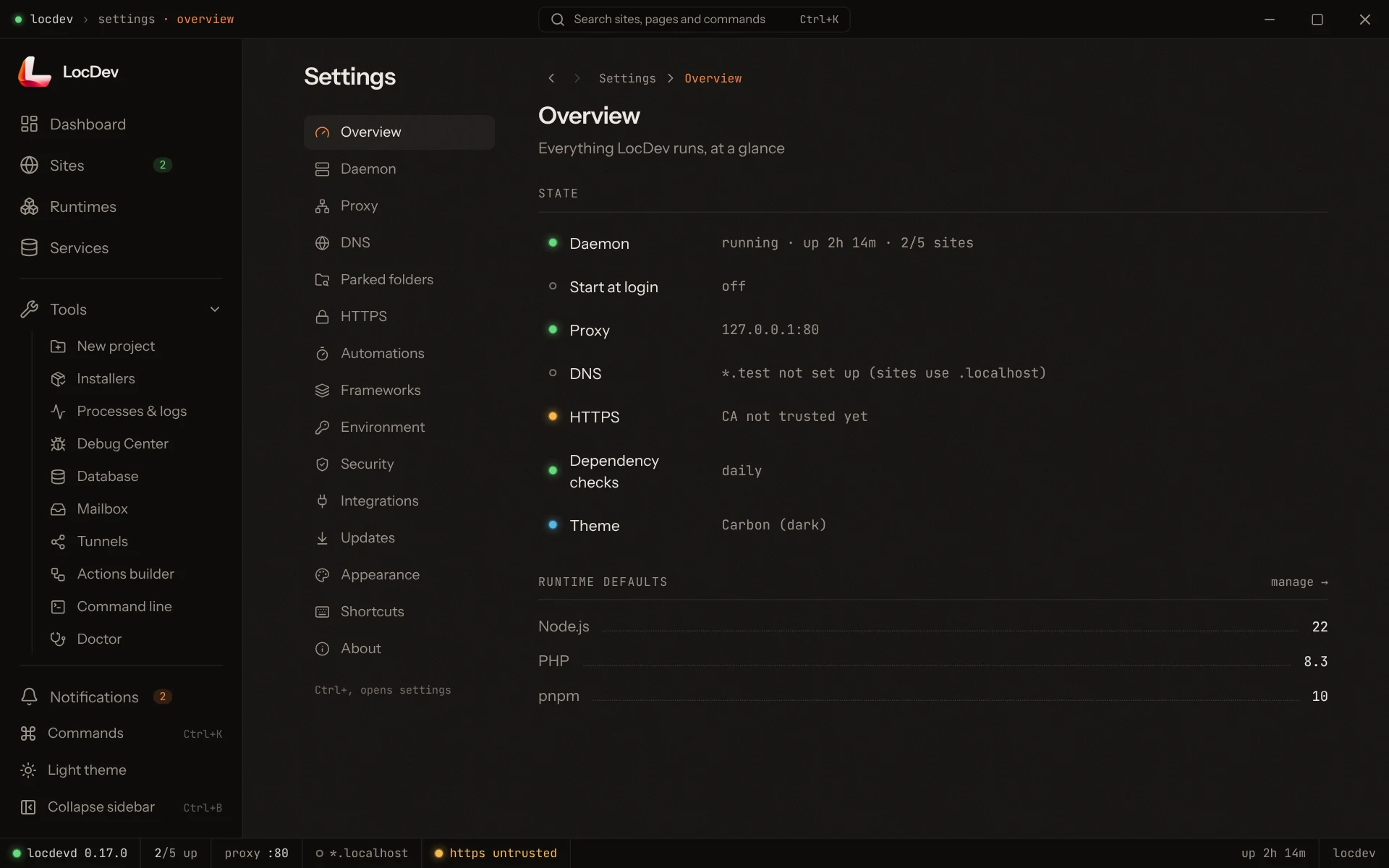
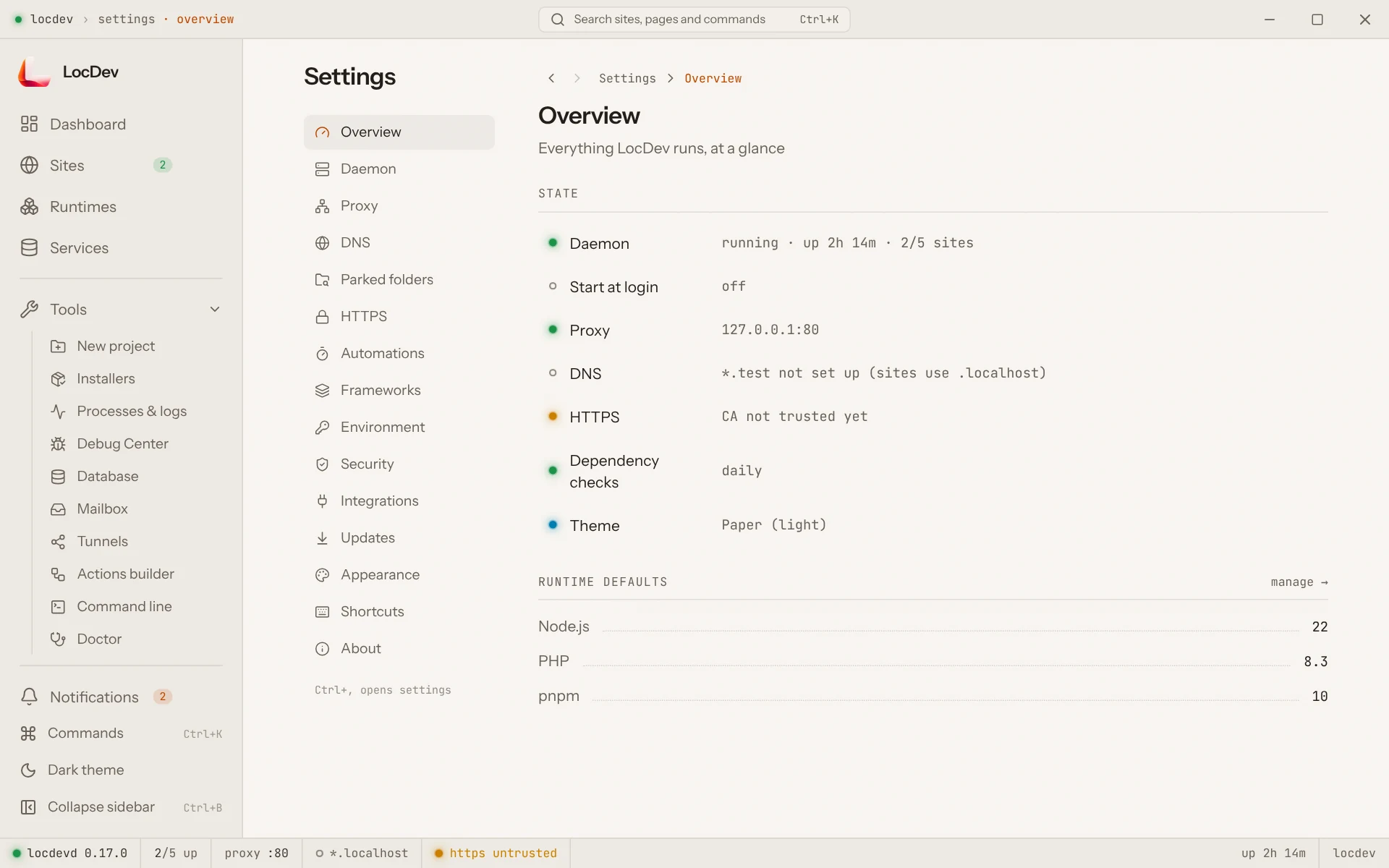
The overview sums up each area; each row leads to its subpage:
- Daemon: process, uptime, IPC endpoint, start/stop/restart, Start LocDev at login and the config and log folders;
- Proxy: the port and the domains it serves;
- DNS and HTTPS (with each site's HTTPS state);
- Appearance: app language, theme, sidebar mode and animations (follow the system, reduced or full);
- Integrations: the GitHub account, the code editor and the deploy platforms;
- Updates and Shortcuts;
- About: the logo, the app, daemon and CLI versions, the build's commit and date, the system and architecture, the update channel, the license (Apache-2.0), the third-party software list with its licenses, the version history (the changelog) and links to the docs and the repository; below it, the CLI on
PATH.
Runtimes
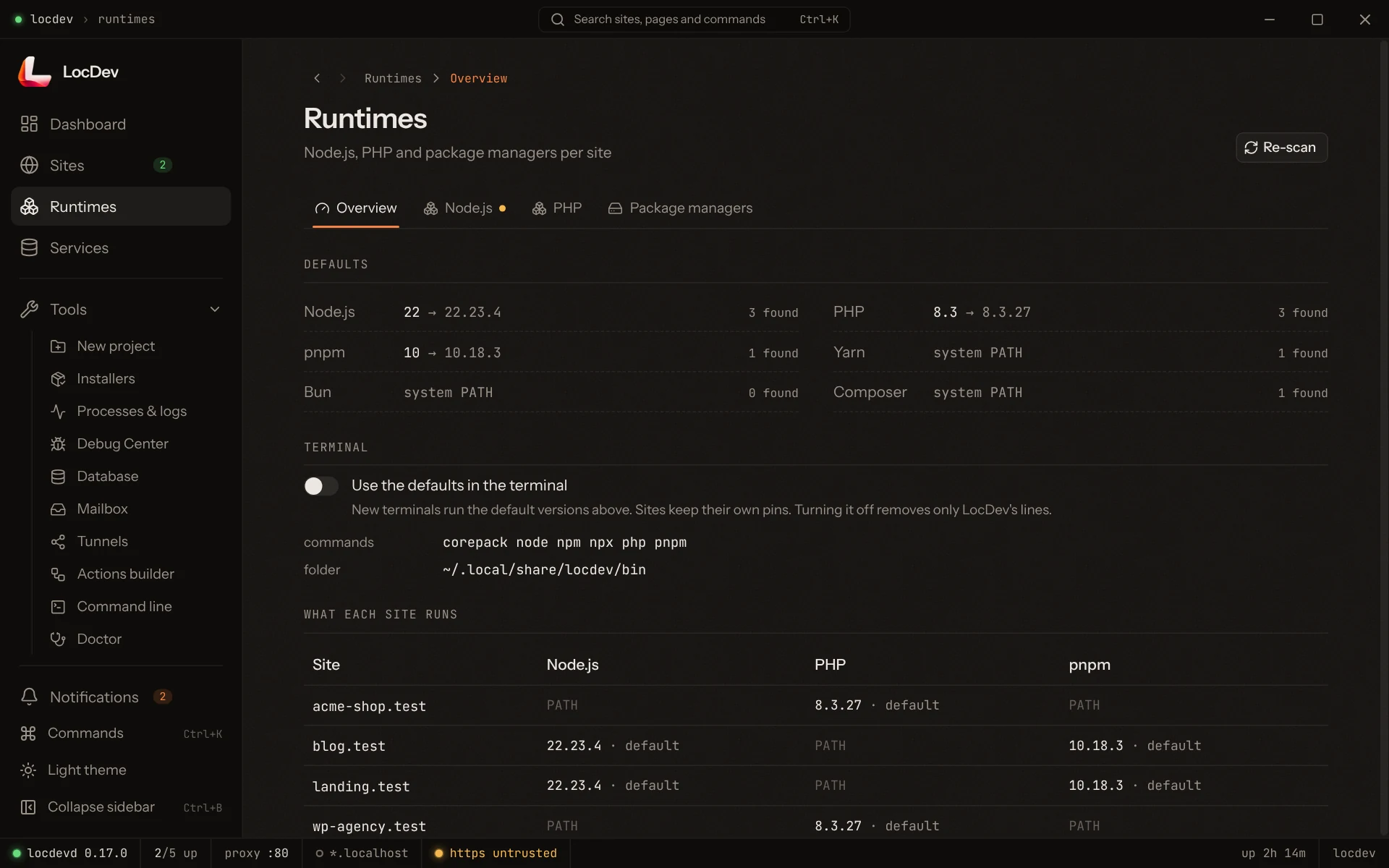
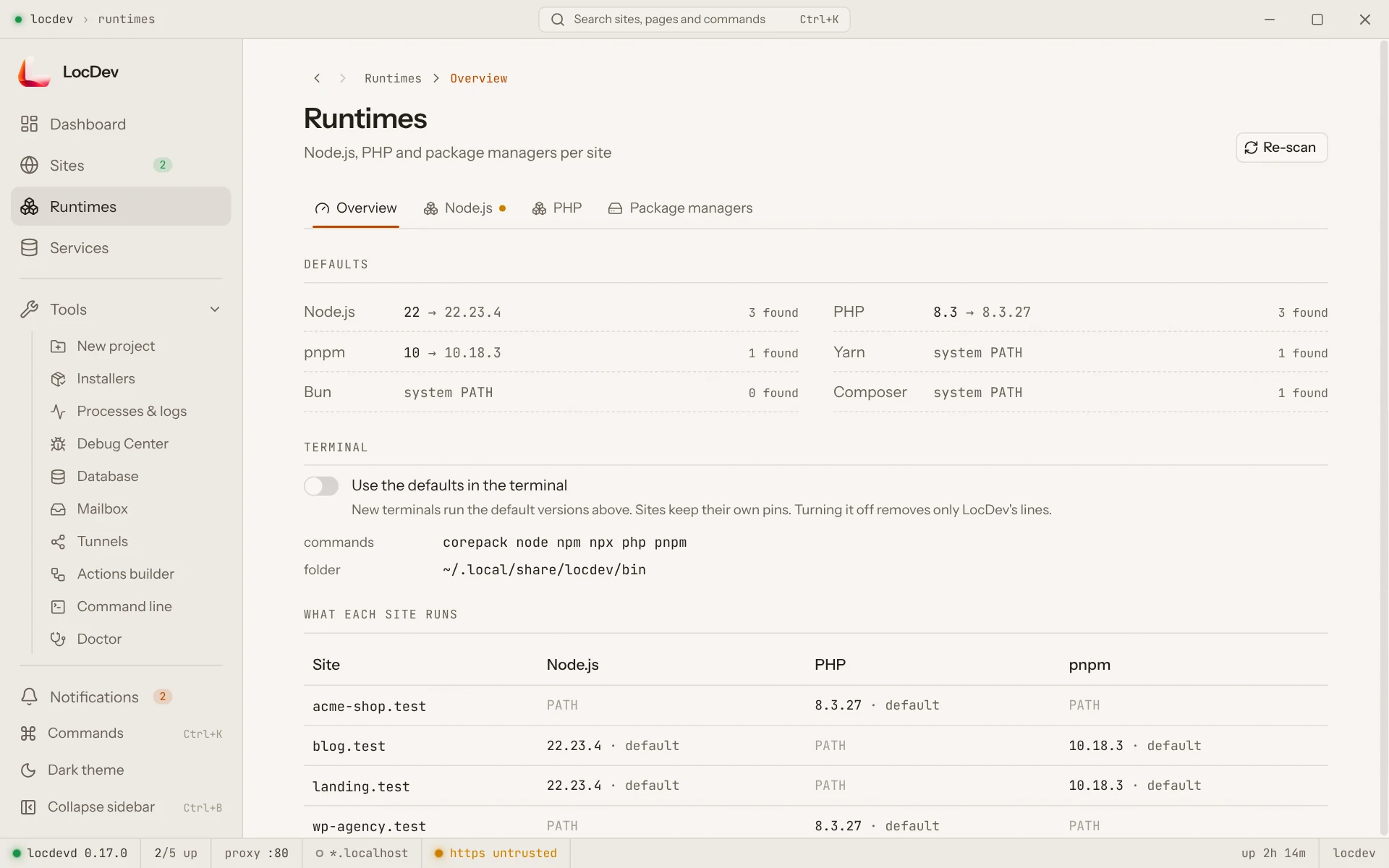
The overview shows the defaults and a table of what each site uses and where the version came from. The Node.js, PHP and Package managers tabs list managed and detected versions, with support and usage badges. See Runtimes.
Services
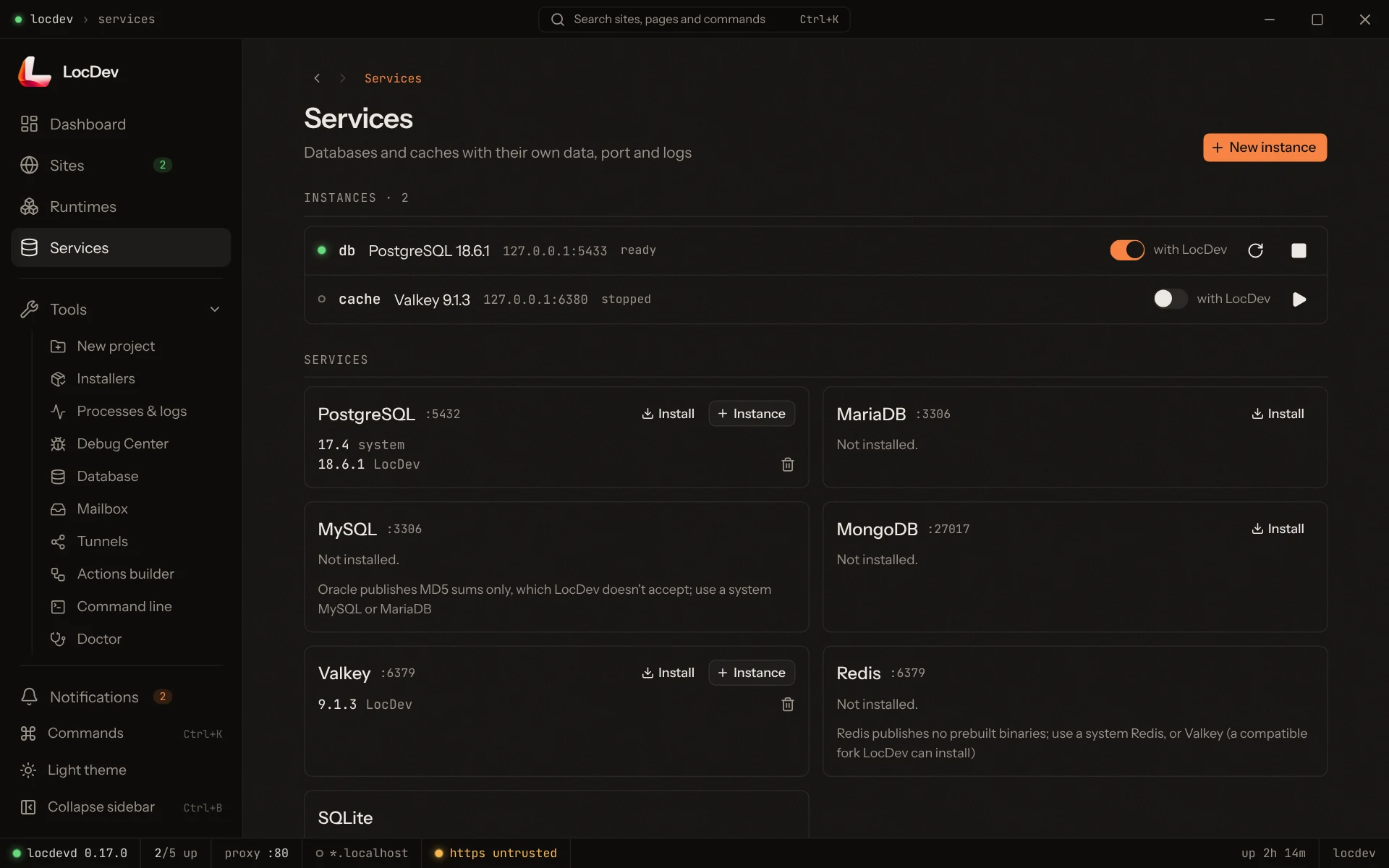
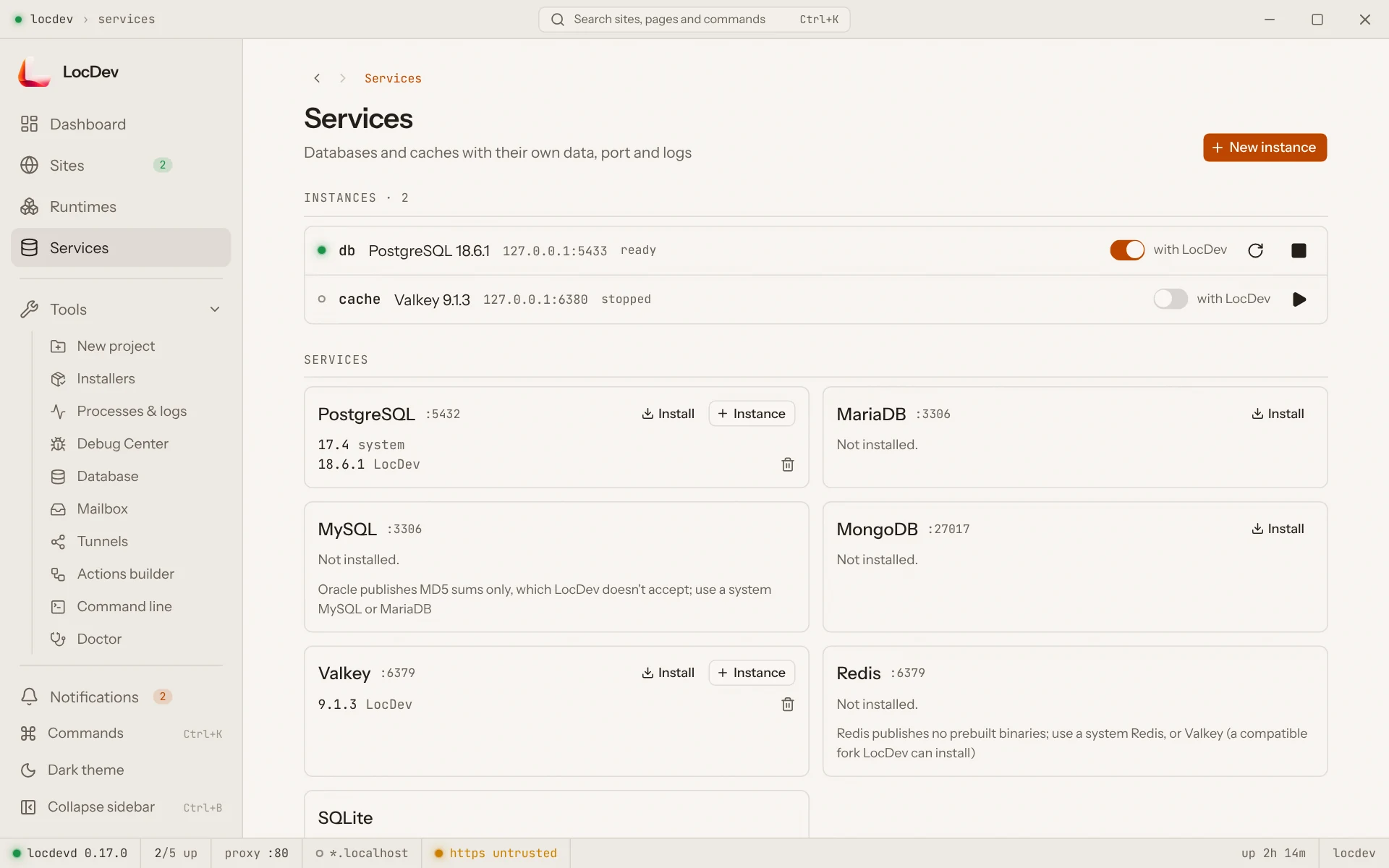
Installs detected or downloaded by LocDev, and the instances with their own port, data and logs. See Services.
Language
The app is in Portuguese, English, Spanish and Japanese. By default it follows the system language; Settings → Appearance fixes one. Changing the language reloads the window. The tray menu follows the app's language once the app has opened. Messages from the daemon (errors, logs, doctor results) and project data stay in English.
Light and dark theme
The app follows the system theme or fixes Paper (light) or Carbon (dark). The screenshots in these docs are in the page's language and follow the site's theme.
Accessibility
The app follows WCAG 2.2 level AA, the reference behind EN 301 549, the European Accessibility Act and Section 508:
- Keyboard: everything works without a mouse.
Tabmoves through the controls with focus always visible, the arrow keys move through the sidebar and tabs, and the shortcuts are in Settings → Shortcuts. - Screen readers: icon-only buttons have names, tabs follow the
tablist/tabpattern, and scrolling areas (code, messages) take focus. - Contrast: text and buttons are above 4.5:1 in both themes.
- Motion: the app respects
prefers-reduced-motion, and Settings → Appearance turns animations off.
Every version goes through an automated check (axe-core) of every screen, in the light and dark themes, including keyboard-only navigation: make test-a11y.
Visual identity
The LocDev logo is an official PNG, used as is. The single source is apps/desktop/branding/logo.png; pnpm icons crops, centers and resizes it to produce the Windows (.ico), macOS (.icns), Linux and Tauri icons, the tray icons, the logo.png used in the app and the splash, and favicon.ico.